Navigate search results
After you perform a search, the search results page appears. From here, you can narrow or sort your search results, see if a resource is available, and more.
Search results are organized into tabs:
- Books: Includes all print books and other physical materials, as well as eBooks, audiobooks, and interactive eBooks.
- Collections: Includes groups of curated resources from Collections by Destiny® that are shared with your school or district.
- Websites: Includes links to web resources (from WebPath Express).
- Databases: Includes links to free and subscription databases (from One Search).
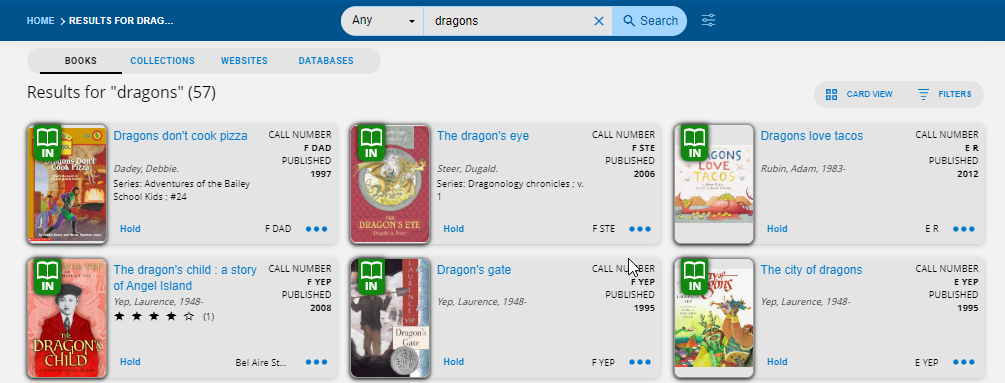
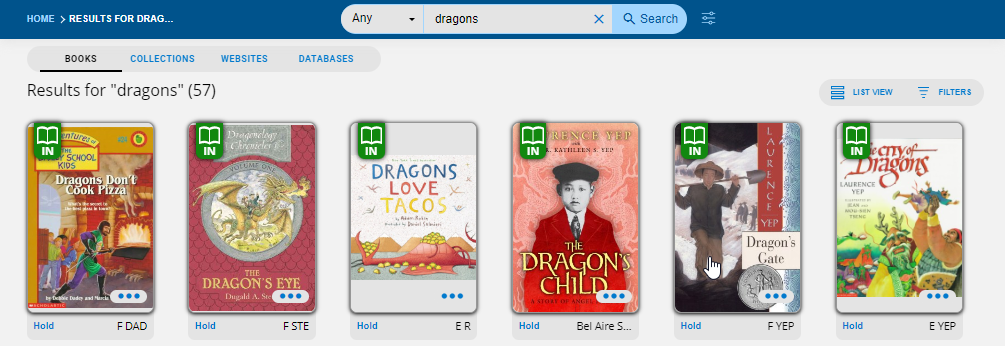
To switch between list view and card view, above the search results, click CARD VIEW or LIST VIEW.
List view
Card view
To narrow or sort your search results:
-
To use one or more filters, in the Filters panel on the right side of the page, click
 next to a filter, and then make your selections.
- To change the sort order, above the search results, click SORT, and then select a sort option.
To share titles or update carousels:
- To share titles, above the search results, click SHARE TITLES, and then select the checkboxes for the titles you want to share.
- To update carousels (administrators only), above the search results, click UPDATE CAROUSELS, and then select the checkboxes for the titles you want to add to a new or existing carousel.
From a search result, you can:
- See the material type and whether it's available.
- See where to find the book in the library (call number, sublocation, or both).
- Click the cover to open a Title Preview.
- Click
 to access actions, including:
- Play (audiobooks only)
- Open (eBooks only)
- Hold/UnHold
- (administrators only)
|
Note: The options that appear are based on the features available at your school. |